Microsoft Designer
- 3.9
- Rating
- 5.00M
- Installs
- Free
- Price

 Analysis by App-foxy
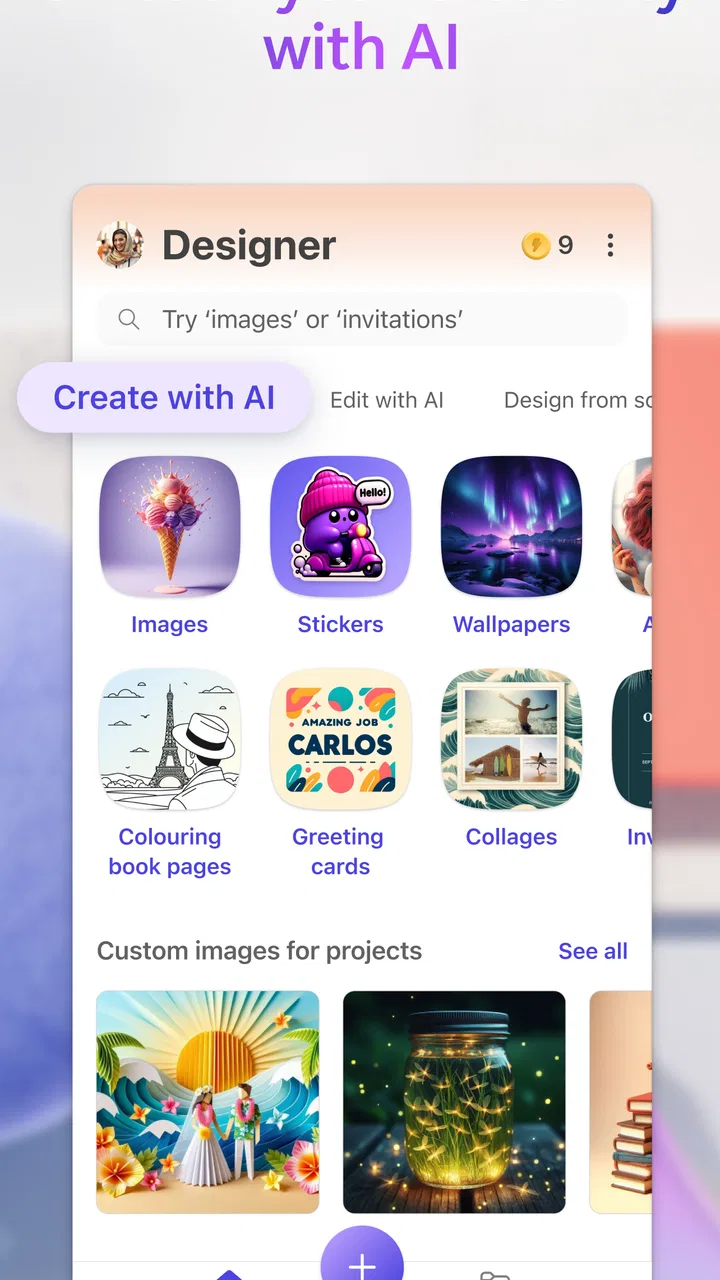
I approached Microsoft Designer as a quick creative tool rather than a replacement for a full desktop design suite. That distinction matters. It is an Art & Design app from Microsoft Corporation, built around creating images and adjusting photos with AI, and its main appeal is speed: you can begin with an idea, a picture, or a rough visual need and move toward something shareable without opening a complicated editor.
After using it across the kinds of situations where people usually reach for a phone design app, I found the experience most convincing when I had a clear, small task. A social post, a simple invitation, a visual for a message, or a quick variation of an existing image benefits from the app’s guided approach. It is less persuasive when I want exact control over every layer, dependable professional color handling, or a workflow that stays completely independent of an internet connection.
The app is free to install and carries an Everyone age rating, although in-app purchases range from $1.99 to $199.99 per item. That combination makes it easy to try, but it also means I would check any purchase prompts carefully before settling into regular use. Its average rating is 3.8 from around 8.4 thousand ratings, with roughly 398 written reviews, while the installation count has passed 5 million. Those figures suggest a substantial audience, but they also tell me to keep expectations realistic: this is a convenient mobile creative assistant, not an automatic answer to every design problem.
You May Also Like

 Blood Strike: 2.5 Anniversary
Blood Strike’s Loadouts Turn Every Drop Into a Tactical Gamble
A close look at Blood Strike’s custom loadouts: how fast access to signature weapons reshapes its battle royale rhythm, rewards preparation, and narrows the gap between fights.

 Pandora - Music & Podcasts
Pandora’s Music Is Easy to Start, but Harder to Recover
Pandora’s strength is its low-effort path from a seed to a station. Its weak spot is how much confidence it asks you to place in connection, setup, and quiet recovery.

 8 Ball Pool
 Is Built on Rivalries, Rematches, and Routine
A close look at the rivalries, rematches, shared routines, and unanswered safety questions that turn a quick pool match into a persistent mobile community.

 Samsung Music
’s Quiet Strength Is Playing What You Already Own
Its reach comes less from spectacle than from dependable access to a personal library. That simplicity is both the app’s strongest retention engine and its ceiling.

 AccuWeather: Weather Radar
AccuWeather Review: A Quick, Clear Forecast for Everyday Decisions
For everyday plans, the best forecast is the one you can understand quickly. AccuWeather makes rain timing, radar, and local conditions easy to act on, with a few trade-offs.

 Hill Climb Racing
Why Hill Climb Racing Still Turns Crashes Into One More Run
A tiny car, a bumpy hill and one more upgrade: Hill Climb Racing keeps resurfacing because its simple chaos makes every near-miss feel personal.
More From Our News Desk



How connectivity changes the creative workflow
I find it helpful to treat a connected session as a small production window: gather the photo and wording first, then use Designer for the part that benefits from AI rather than improvising every step on the fly. That makes it easier to judge whether a delay is worth waiting through and to keep a fallback ready. The next section looks at how that planning can make the handoff from an initial idea to a finished, shareable draft feel more dependable.
Why the best moments feel network-dependent
The most important thing to understand is that the app’s central idea depends on processing beyond a traditional pencil-and-canvas editor. When I ask it to help create a visual or make an AI-assisted change, the quality of the experience is tied to the connection available at that moment. On a stable network, the process feels pleasantly direct: I can describe what I want, review the result, and decide whether it is close enough to refine or replace.
That convenience comes with a trade-off. I do not experience the same predictable immediacy I get from a basic crop, brightness adjustment, or locally stored drawing tool. A request that involves generating or transforming content can take longer when the connection is busy or weak. For me, this changes how I plan to use Designer. I treat it as a connected workspace for idea development and quick publishing, not as the app I depend on when I am about to board a flight or work somewhere with unreliable service.
This is especially noticeable when I compare it with the usual alternatives. A conventional photo editor often opens a picture and lets me crop, rotate, or adjust it with little concern about network conditions. A template-based design app may also feel more predictable if its assets are already available on the device. Designer’s advantage is the AI-assisted starting point, but that advantage is strongest when the connection allows the app to respond smoothly.
A practical mobile scenario
One realistic use case is preparing a last-minute announcement for a community group. Imagine that I need a square image reminding people about a weekend activity. On a phone, I can start with the message and desired mood, create a visual direction, then adjust the result until the wording and image feel appropriate. I do not need to begin by choosing a blank canvas, searching through every visual element, and manually assembling a composition.
The time saving is not just the first generation. It is the reduction in small decisions. The app can help me move past the intimidating empty page, which is useful when I know what I want to communicate but do not have a strong visual concept. I still review the result carefully, especially text, faces, hands, logos, and any detail where a slightly odd interpretation would make the finished image look careless.
For that scenario, I would prepare the request while connected, keep the wording short and specific, and avoid making the app guess important facts. If the announcement includes a date, location, or instruction, I would add and check those details myself rather than assuming an AI-generated composition will preserve them perfectly.
What works well on a phone
The mobile format suits quick decisions. I can work from a photo already on the device, make a visual while away from a desk, and judge the result in the same context where many people will see it: a phone screen. That is valuable for casual creators, students, small groups, and anyone who needs a usable image without learning a large desktop application.
I also like the fact that the app encourages iteration. Instead of treating the first result as final, I can change the direction, try a different visual mood, or use an existing photo as the starting point. The useful habit is to make one meaningful change at a time. If I change the subject, style, layout, and wording together, it becomes difficult to tell which instruction improved the result and which one caused a new problem.
There is a limit to this convenience. A phone screen is not ideal for detailed inspection, and touch controls can make precision work slower than a mouse and keyboard. If I am aligning several elements, checking tiny type, or preparing something that must meet strict brand rules, I would rather move to a more traditional editor. Designer helps me get to a strong draft quickly; it does not remove the need for judgment.
When a weak connection interrupts the plan
The frustrating moments appear when the app needs to do something more substantial and the network does not cooperate. Waiting for a result is one issue, but uncertainty is more disruptive: I may not immediately know whether a request is still processing, needs to be tried again, or failed before the result was created. That makes a connected workflow less suitable for time-sensitive work where I have only one opportunity to finish.
My advice is to avoid leaving the important step until the final minute. Create a first version earlier, inspect it, and keep a satisfactory result available before making experimental changes. This is not exciting advice, but it prevents a weak connection from turning a five-minute task into a stressful restart.
I would also avoid repeatedly sending the same request without checking what happened first. Repeating an action can waste time and may produce several near-identical results without addressing the real problem. A better approach is to simplify the instruction, confirm that the image or text is still present, and then try a smaller adjustment.
Recovery habits that make the app less fragile
When a result is not right, I recover more effectively by separating creative correction from technical troubleshooting. First, I decide whether the output itself is wrong. If it is, I rewrite the request with a clearer subject, setting, composition, and intended use. If the app appears stuck or fails to respond, I check the connection and reopen the task rather than endlessly editing the same instruction.
Keeping source material organized also helps. Before beginning, I make sure the photo I want is easy to find and that the wording I need is saved somewhere else if it is important. That way, a failed attempt does not force me to reconstruct the whole idea from memory. This is a small but useful difference between casually experimenting and relying on the app for a real task.
I would not assume that every interrupted action has been saved in the exact state I expected. I make a habit of checking the visible result before moving on, particularly after a connection change. If the image matters, I preserve a usable version as soon as I am satisfied instead of continuing to experiment with no fallback.
Using it thoughtfully with limited data
Because AI-assisted creation can involve sending requests and working with images through a connected service, I would be selective about the material I upload. Personal documents, private photographs, identity information, and images containing other people deserve more care than a generic background or a public event graphic. I do not use a convenient design workflow as a reason to ignore basic privacy judgment.
Data-conscious use also means reducing unnecessary retries. I write a reasonably precise prompt before sending it, choose the most suitable source image, and avoid generating many versions merely because I have not decided what I want. This is better for my own time and makes the process easier to evaluate. If I am working on a limited mobile plan, I prefer to do connected experimentation when I have a dependable connection rather than repeatedly testing variations while travelling.
There is another practical consideration: a generated image can look polished while still being unsuitable for a specific purpose. I check whether the composition leaves enough room for the actual message, whether the contrast works on a small screen, and whether the visual accidentally suggests something I did not intend. This review step matters more than creating another variation. Speed is useful only when the result remains understandable.
Who will appreciate the connected approach
I think Designer is a strong fit for people who want help getting started. If you regularly need quick social visuals, simple promotional graphics, personal announcements, mood-based image ideas, or photo variations, the AI focus can remove much of the initial friction. It is also approachable for users who find professional design applications overwhelming but still want more flexibility than a basic photo editor.
It may suit a small business owner who handles their own communication, provided the person is willing to proofread and keep visual consistency under control. It can also help a teacher or club organizer create a visual draft quickly, then make the final wording and factual checks personally. In these cases, the app’s value is not that it makes every decision correctly; it gives a workable starting point when time or design confidence is limited.
I would be more cautious about recommending it to a professional designer who needs exact, repeatable control across a large identity system. A desktop tool with precise layers, typography, export settings, and asset management is still the better choice for that work. I would also steer away users who need a dependable offline-first workflow, since the most distinctive parts of Designer are tied to connected processing.
How it compares with familiar alternatives
Compared with a standard photo editor, Designer is more useful when the question is “What could this image become?” rather than “How do I adjust this image precisely?” A conventional editor wins for predictable corrections such as cropping, exposure changes, and detailed retouching. Designer wins when I need an idea, a variation, or a faster path from a vague concept to a presentable visual.
Compared with template-heavy design apps, its AI orientation can feel more flexible at the beginning. Templates are excellent when I want a known structure and can accept working within it. Designer is more appealing when I want to describe a direction and see where it leads. The downside is that a generated starting point may need more careful correction than a carefully built template, particularly when the design includes exact wording or a consistent visual identity.
Compared with a full desktop graphics package, the phone experience is easier to approach but less exact. I can accomplish a useful result without spending time learning a deep toolset, yet I give up some control and comfort during detailed editing. My choice depends on the job: Designer for speed and exploration, a conventional editor for precision, and a template service when consistency and quick repeatability matter more than originality.
Important details before installing
The app was released on June 18, 2024, and the current version is 1.2604204.7002. It requires at least Android 9, so compatibility is worth checking before planning a workflow around it. Those details are particularly relevant if I am using an older phone, because AI-assisted creative work can already feel demanding on a small or aging device even when the software installs successfully.
Although the download is free, I would not treat every possible capability as automatically cost-free. The listed in-app purchase range extends from $1.99 to $199.99 per item, which is broad enough that I would read each purchase screen rather than tapping through quickly. For someone trying the app casually, the sensible approach is to explore the free experience first and decide whether any paid option genuinely improves a repeated task.
The Everyone rating makes it broadly approachable from an age-classification perspective, but that does not replace adult guidance for children using AI image tools. I would still encourage younger users to avoid private photos, review generated content critically, and ask before sharing images that include other people.
My final connectivity verdict
After using it as a mobile creative companion, I see Microsoft Designer as most valuable when I have a connected moment, a reasonably clear goal, and enough time to review the result. Its strongest quality is not simply that it can produce an image quickly. It helps me cross the gap between having an idea and having something visible to improve, which is where many everyday design tasks stall.
The connection is also the boundary of that strength. If the network is unreliable, if I need guaranteed local responsiveness, or if the work requires exact professional control, I would choose a different tool or prepare a fallback. I would not install Designer expecting it to replace every photo editor, template library, or desktop graphics application.
For my own use, the recommendation is straightforward: try it for fast, mobile-first creative work, but keep a human review step and plan around connectivity. The free entry point makes experimentation easy, while the purchase range means I would stay alert to upgrade prompts. If you want a guided way to turn a rough visual idea into a shareable draft, this app is worth exploring. If your priority is offline certainty or meticulous design control, the usual alternatives will serve you better.
FAQs for Microsoft Designer
01What is Microsoft Designer and what can it be used for?
Microsoft Designer is a graphic design tool that allows users to create stunning visual content without the need for advanced design skills. It offers a variety of templates and intuitive tools to craft social media posts, presentations, and marketing materials. Ideal for both professionals and beginners, it streamlines the design process.
02Is Microsoft Designer available for both Android and iOS devices?
Currently, Microsoft Designer is primarily a web-based application, but Microsoft has plans to expand its reach to mobile platforms like Android and iOS. Users should keep an eye on official announcements for future releases specific to these operating systems.
03What features make Microsoft Designer stand out from other design apps?
Microsoft Designer offers AI-powered design suggestions, a vast library of customizable templates, and seamless integration with Microsoft 365. These features make it a powerful tool for creating polished designs quickly and efficiently, catering to users who need quality results with minimal effort.
04Are there any subscription fees or additional costs associated with Microsoft Designer?
Microsoft Designer is generally included as part of the Microsoft 365 subscription, offering users access without additional costs. However, some premium features or content may require extra purchases. It's important to check the specific terms of your subscription for detailed pricing information.
05How user-friendly is Microsoft Designer for beginners?
Microsoft Designer is designed with user-friendliness in mind, making it accessible for beginners. Its intuitive interface, guided tutorials, and AI-driven tools help users create professional-looking designs without prior experience. Despite its simplicity, it still offers robust features for more advanced users.
Pros
- Intuitive interface for easy design creation.
- Wide range of templates available.
- Seamless integration with Microsoft 365.
- Collaboration features for teams.
- Cloud storage for easy access.
Cons
- Limited advanced design tools.
- Requires Microsoft account for full access.
- Subscription needed for premium features.
- Occasional lag with high-resolution images.
- Mobile app lacks some desktop features.

Microsoft Designer
Gallery